Upgrade to Windows 11 26H2

Table of Contents
- Security improvements
- Management and deployment enhancements
- User experience and accessibility enhancements
- Now enabled by default
- Create a Dynamic group for Windows 11 devices
- Create a Feature update profile
After months of testing, Microsoft finally released Windows 11 26H2! Feature update 26H2 is here!
Windows 11 version 26H2, also known as the 2026 Update brings a mix of security enhancements, enterprise features, and under-the-hood improvements but not many visible changes. However, some cool features have been introduced!
Security improvements
Windows continues to build on Microsoft commitment to security by default and security by design.
- Administrator protection provides just-in-time administrative privileges and profile separation to help harden Windows against elevation-of-privilege attacks. You can enable it through Microsoft Intune or Group Policy.
- Built-in Sysmon functionality in Windows enables you to capture system events that security tools can use for threat detection. Sysmon is off by default. You can configure it to capture the events your organization needs.
- Smart App Control can now be turned on or off without requiring a clean installation of Windows, making it easier to block untrusted or potentially harmful apps.
- Windows Hello Enhanced Sign-in Security expands support to compatible peripheral fingerprint sensors. As such, enhanced biometric sign-in protection is available on more Windows 11 PCs.
- Post-quantum cryptography improvements include API support for NIST-standardized ML-KEM and ML-DSA algorithms. They include support for key exchange, signing, and decryption through CNG and .NET.
- Driver security enhancements change how the Windows kernel trusts third-party drivers. They remove default trust for cross-signed drivers while maintaining support for WHCP and designated trusted legacy drivers.
Management and deployment enhancements
Windows 11, version 26H2 introduces improvements designed to help IT administrators deploy, manage, and secure devices at scale.
- Windows Autopilot device preparation supports device association. It helps organizations identify trusted devices before enrollment and enabling device-targeted policies, automatic corporate device enrollment, and additional OOBE customization.
- Windows settings backup and restore expands first sign-in restore to Microsoft Entra hybrid joined devices, Cloud PCs, and multi-user environments. Use it to restore user settings and Microsoft Store apps during device refreshes, upgrades, and migrations.
- Point-in-time restore for Windows provides another recovery option. Roll back a PC, including apps, settings, and personal files, to a recent automatic restore point.
- Policy-based app removal gives organizations more flexibility to remove preinstalled Microsoft apps on Enterprise and Education devices. Just specify additional MSIX and APPX packages through Group Policy.
- RSAT on Arm64 enables IT administrators to use tools including Server Manager, Group Policy Management Tools, DNS Server Tools, DHCP Server Tools, and Active Directory management tools on Windows 11 Arm64 devices.
- App update orchestration allows participating applications to coordinate updates with Windows Update for improved scheduling and a more streamlined update experience
User experience and accessibility enhancements
Windows 11, version 26H2 continues to improve everyday productivity with enhancements across Windows experiences.
- File Explorer adds productivity enhancements including AI actions for working with supported images and summarizing OneDrive and SharePoint documents. Also included are quick actions for work and school accounts, support for additional archive formats, and performance improvements.
- Windows Search makes results easier to find and understand with previews. It better handles typos and partial app names, identifies result types clearer, and automatically indexes frequently used folders.
- Start and taskbar enhancements provide additional ways to customize the Windows workspace. Begin with new Start menu views and sizing options, additional taskbar positions, and a smaller taskbar option.
- Task Manager provides greater visibility into NPU usage, including NPU utilization and memory information. You can also identify applications running in an AppContainer.
- Magnifier adds clearer screen reader announcements, more precise zoom controls, and screen tint options to improve readability.
- Narrator adds Braille Viewer, improves reading and navigation in Microsoft Word, and provides more control over how information about on-screen controls is announced.
- Voice access adds natural language commanding on supported Copilot+ PCs, additional language support, and Voice Isolation to help improve recognition in environments with other speakers or background noise.
Now enabled by default
Some features that were behind temporary commercial control in Windows 11, version 25H2 are now enabled by default in version 26H2. These include:
- Windows settings backup, which helps preserve supported Windows settings and Microsoft Store app lists for recovery and device replacement scenarios. Existing administrator-configured policies are still honored.
- App-specific taskbar actions that help users access common actions directly from taskbar experiences.
- File Explorer improvements focused on improving navigation and usability within File Explorer.
Source: An IT pro’s guide to Windows 11, version 26H2 – Windows IT Pro Blog
Source: What’s new in Windows 11, version 26H2 for IT pros | Microsoft Learn
Devices being managed with Intune can be upgraded via a Feature Update policy. The blog shows you how to upgrade to Windows 11 26H2. This post shows you how to do it using Feature Update policies. This does not demonstrate how to configure Windows Autopatch.
Note: Feature updates can be assigned to specific groups. We create a dynamic group which is limited to devices running Windows 11 already. Devices running Windows 10 are out of scope and will not be upgraded.
Create a Dynamic group for Windows 11 devices
- Navigate to https://portal.azure.com. Open Azure Active Directory.
- Click Groups -> New group.
- Fill in the required fields like shown below.
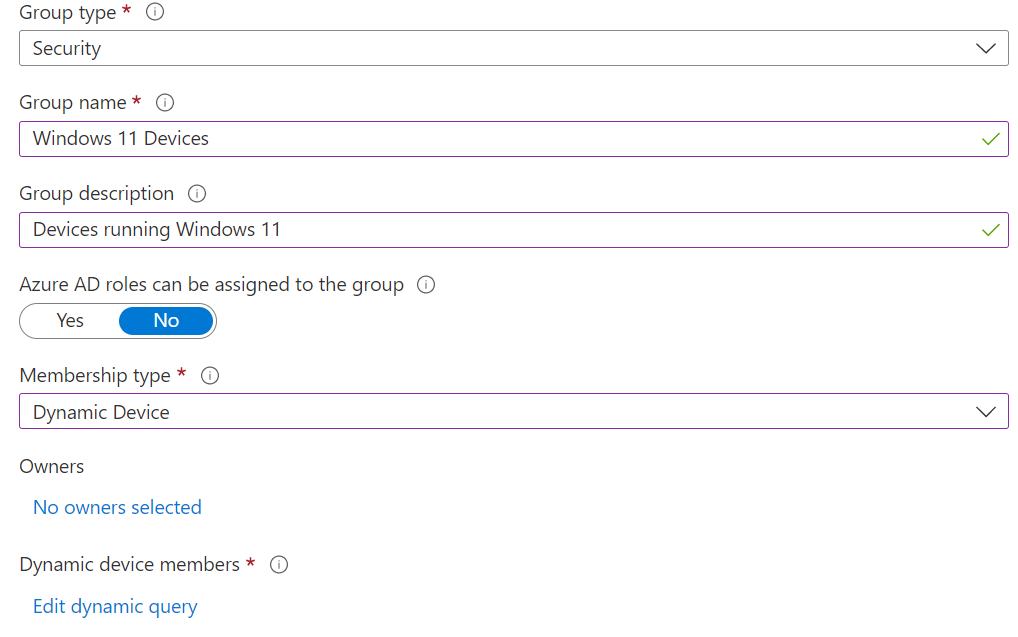
- Click Edit dynamic query. Use the following query to select only the devices running Windows 11 and being MDM (Intune) managed.
(device.deviceOSVersion -startsWith “10.0.2”) -and (device.DeviceOSType -startsWith “Windows”) -and (device.managementType -eq “MDM”)
Note: Device OS version 10.0.2 is for Windows 11 devices. If you would like to select Windows 10 devices (which is almost EOL) you need Device OS version 10.0.1.
Create a Feature update profile
Feature updates are managed in MDM (Endpoint Manager / Intune). Therefor we can close the Azure Portal and switch to Endpoint Manager / Intune.
- Navigate to https://endpoint.microsoft.com
- Click Devices -> Feature update for Windows 10 and later
- Click Create profile.
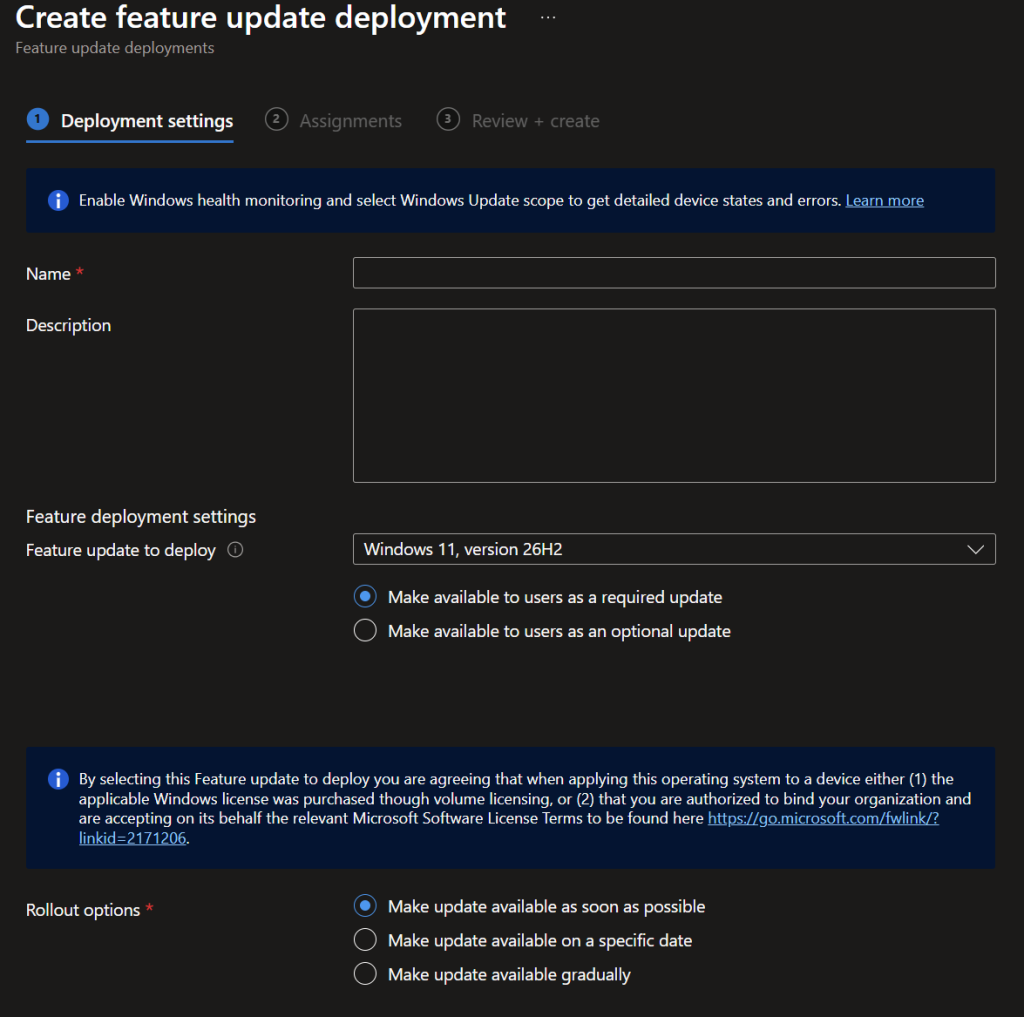
- Configure the options as shown below.
Note: Modify the rollout options to your preferred method. The first option deploys the feature update as soon as possible on all managed devices, which are part of the assignment. The second one does the same but starts on a specific date. This is useful if u prefer a delay after deploying the feature update profile. Using the gradually option deploys the update between specific dates and splits devices into groups without knowing when which device will be upgraded 🙂 The only thing you know is the start and finish date.
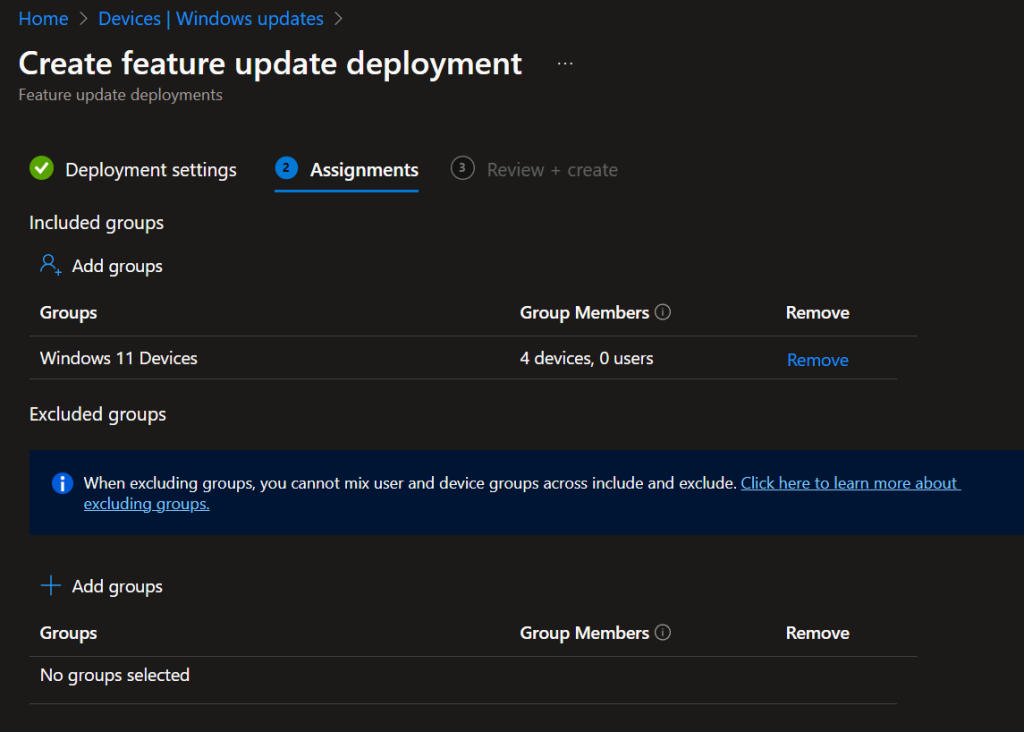
Assign the policy to the Dynamic group we’ve created before, click Next and finally Finish.
Your devices will now start updating to the newest feature update depending on the rollout option you selected.
Note: If you have update rings deployed with a feature update deferral period this will impact your Feature update deployment. It is recommend to set the Feature update deferral period (days) to 0. This configuration ensures your feature updates are not delayed by update deferrals that might be configured in an update ring policy.
Written by Joey Verlinden
Back to all articles